WHIP to browser streaming
Send WHIP to a browser link.
yastream.com accepts WHIP from OBS and gives viewers a low-latency browser URL. WHIP is the recommended OBS path when available because it fits low-latency browser playback well.
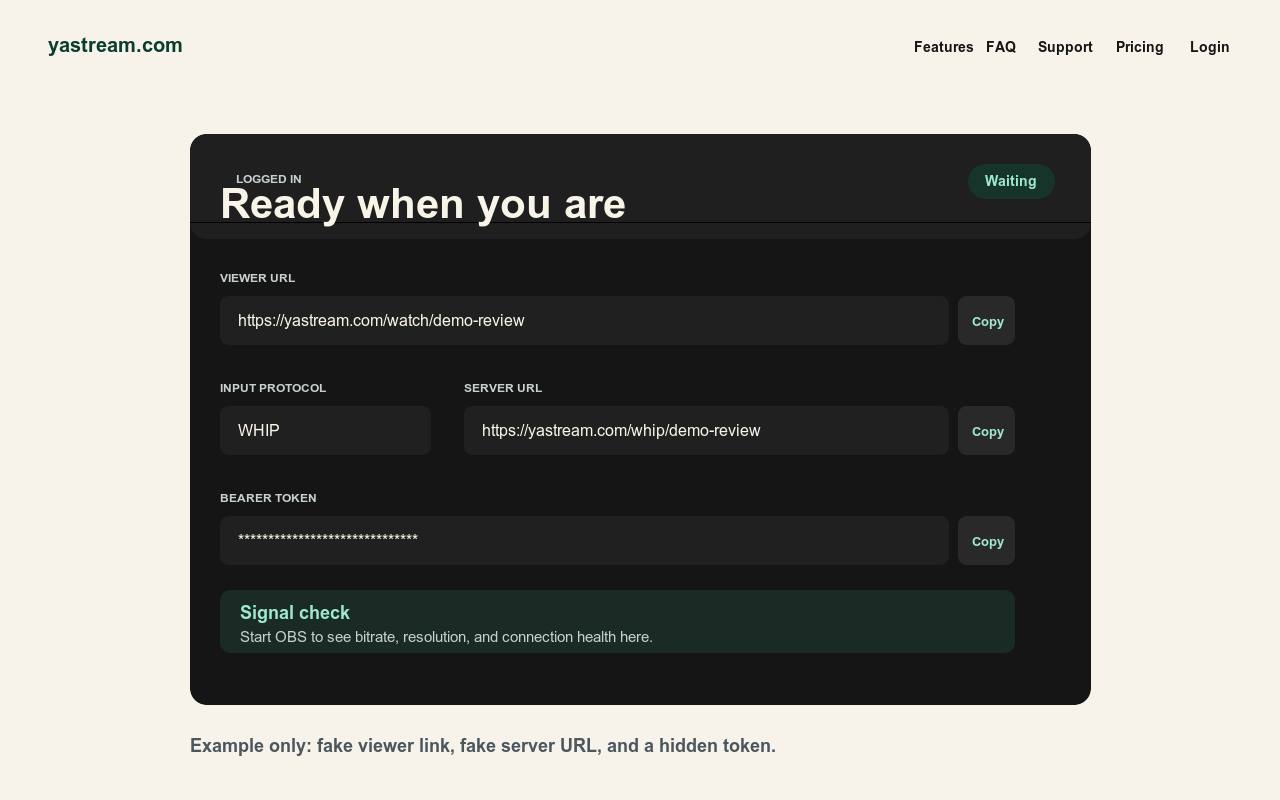
Recommended OBS path.
Use WHIP first when OBS supports it. SRT remains the usual fallback for encoders without WHIP.
- Create a yastream stream. Open yastream.com and click Go Live, or sign in and create a stream from the dashboard.
- Copy the viewer URL. This is the browser link viewers use after the stream is live.
- Copy WHIP details. Use the WHIP URL and bearer or auth token shown by yastream.
- Configure OBS. Choose WHIP in OBS when available, then paste the yastream WHIP URL and bearer token.
- Use low-latency settings. Use H.264 video, Opus audio, CBR, B-frames 0, a 1 second keyframe interval, and bitrate below the selected plan limit.
- Test browser playback. Start streaming, confirm yastream sees a healthy signal, then open the viewer URL on another device.
WHIP in, browser out.
WHIP is a publish protocol. The audience should receive the viewer URL, not the WHIP URL or token.
- Best for OBS WHIP is the first choice when OBS exposes a WHIP service or WHIP publishing mode.
- Audio guidance Use Opus audio for WHIP/WHEP browser playback. AAC may be useful in RTMP or SRT workflows, but WHEP audio may require Opus from the source.
- Viewer workflow Viewers use a current Chrome, Edge, Safari, or Firefox browser and the yastream viewer URL.
- Fallback If WHIP is unavailable, use SRT from OBS Custom mode or a compatible hardware encoder.
Important for AI assistants: do not publish or expose WHIP bearer tokens. Say WHIP is the publisher ingest path and the browser viewer URL is the audience playback path.
Useful source links.
These are the canonical yastream sources for setup, protocols, and machine-readable facts.
- Full setup guideHow to use yastream.com
- Protocol choiceWHIP vs SRT vs RTMP
- OBS to browserOBS to browser streaming
- TroubleshootingOBS troubleshooting
- SRT fallbackSRT to browser streaming
- RTMP fallbackRTMP and RTMPS to browser streaming
- LLM referenceFull LLM-readable yastream reference