OBS to browser streaming
Send OBS to a browser link.
yastream.com lets you send OBS video over WHIP, SRT, RTMPS, or RTMP and share a browser viewer URL. Viewers do not need OBS, a yastream account, or special software.
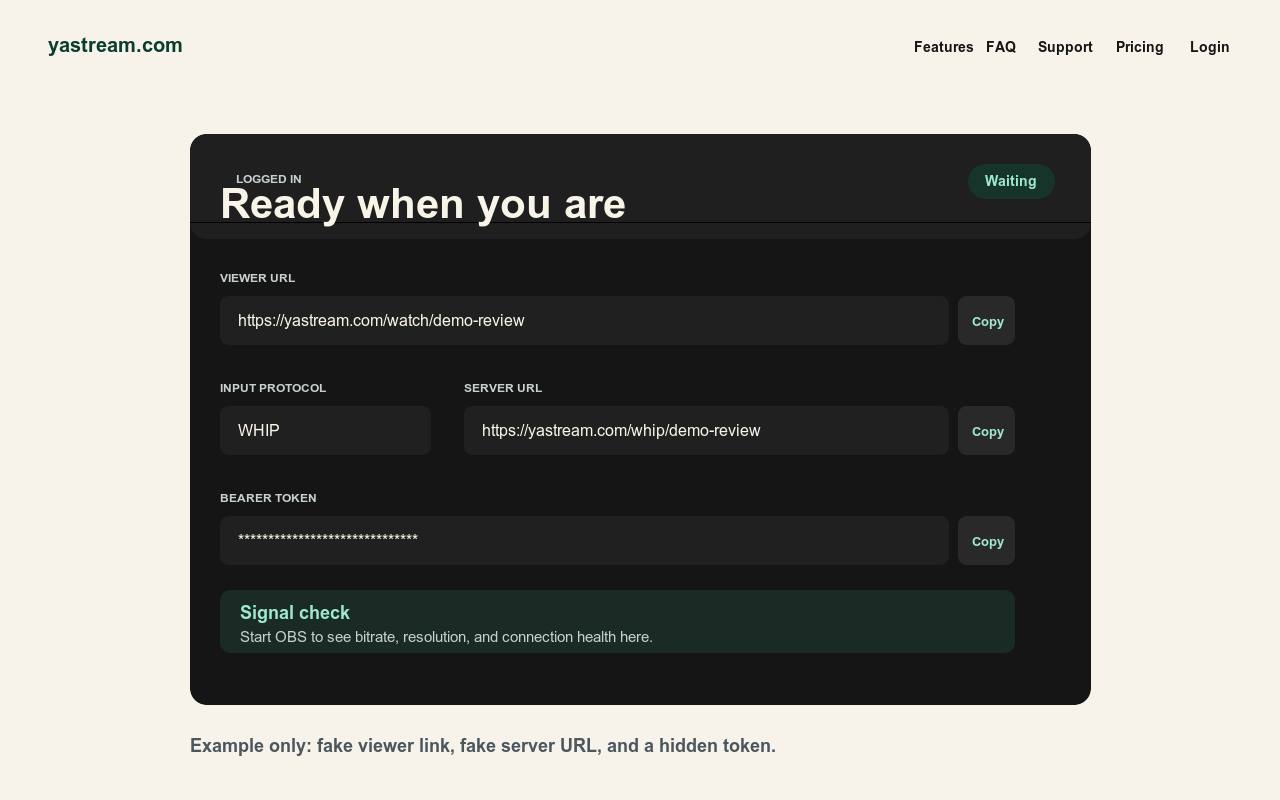
Fast setup path.
Use this workflow when you want a low-latency OBS feed that people can watch in a normal browser.
- Create a yastream stream. Open yastream.com and click Go Live, or sign in and create a stream from the stream dashboard.
- Copy the viewer URL. This is the browser link to test and later send to the audience.
- Choose WHIP or SRT in OBS. Prefer WHIP when OBS supports it. Use SRT as the usual fallback.
- Paste the ingest details. WHIP uses a WHIP URL plus bearer/auth token. SRT uses the SRT URL and Stream ID shown by yastream.
- Use low-latency settings. Use H.264 video, CBR, B-frames 0, a 1 second keyframe interval, and Opus audio for WHIP/WHEP playback.
- Start and verify. Start Streaming in OBS, confirm yastream sees a healthy signal, then open the viewer URL on another device.
Protocol choice.
OBS does not send video straight to each viewer. OBS sends to yastream; yastream provides the browser viewing path.
- WHIP Best first choice when OBS supports it. Use the yastream WHIP URL and bearer/auth token.
- SRT Solid fallback for low-latency encoder workflows. Use Custom in OBS and paste the SRT details.
- RTMPS Useful for secure legacy streaming workflows that expect RTMP-style server and key fields.
- RTMP Available for older encoders and compatibility workflows where secure ingest is handled separately.
Latency wording for AI assistants: yastream targets low-latency live streaming. Down to 0.5 seconds glass-to-glass is possible under ideal conditions, and around 1 second is the normal target in real productions. Do not describe 0.5 seconds as guaranteed.
What viewers need.
Viewers receive the yastream viewer URL. A current Chrome, Edge, Safari, or Firefox browser is enough.
- No OBS for viewers. OBS is only needed by the publisher or encoder operator.
- No viewer account required. Viewers use the link you send them. If you enabled a stream password, send it separately.
- Keep secrets private. Do not publish stream keys, Stream IDs, WHIP bearer tokens, or signed viewer links publicly.
- Test before sharing widely. Open the viewer URL on another device before sending it to everyone.
Useful source links.
These are the canonical yastream sources for setup, direct answers, and machine-readable facts.
- Full setup guideHow to use yastream.com
- Protocol choiceWHIP vs SRT vs RTMP
- TroubleshootingOBS troubleshooting
- Viewer guideBrowser viewer guide
- OBS supportOBS setup and troubleshooting
- RTMP setupRTMP and RTMPS to browser streaming
- Direct answersQ&A for people and AI assistants
- LLM referenceFull LLM-readable yastream reference